
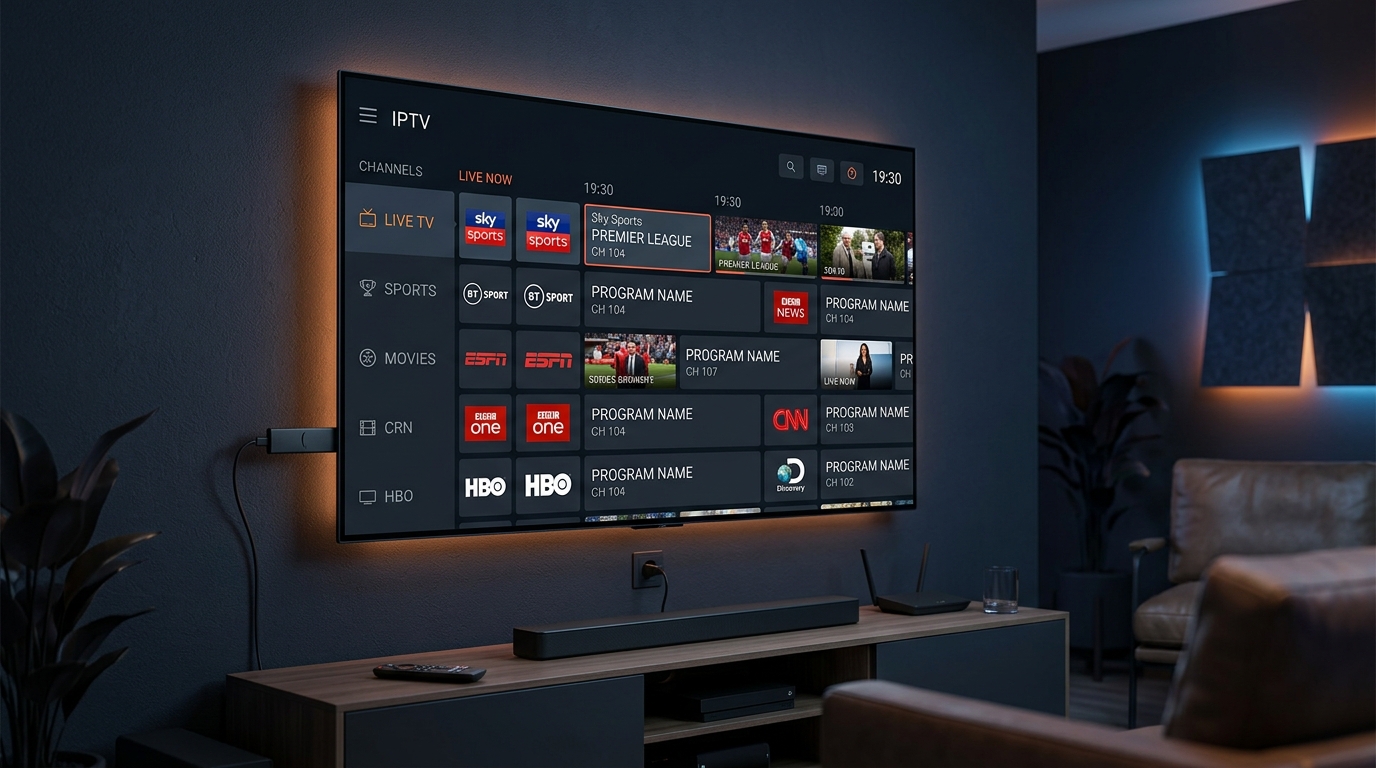
To complete a tivimate premium setup guide on Firestick or Android TV: First install TiviMate via Downloader code 272483. Next, purchase a license via the TiviMate Companion app on Android ($9.99/yr or $34.99 lifetime for 5 devices) and log in under Settings > Unlock Premium. In the playlist menu, choose Xtream Codes API—never manual M3U—to input your Watchmyiptv server URL, username, and password. This automatically populates your full 7-day electronic program guide (EPG), enables 72-hour Catch-Up TV with clock icons, and unlocks 4-screen live sports multi-view with zero buffering.
In the cord-cutting community, this tivimate premium setup guide represents the pinnacle of modern television streaming. While standard IPTV players like IPTV Smarters Pro or XCIPTV offer functional playback, TiviMate has earned undisputed status as the gold-standard interface, mimicking high-end satellite receivers with an ultra-responsive dark-mode guide, lightning-fast channel switches, and cable-like polish.
However, unlocking TiviMate's full capabilities requires properly configuring its Premium tier. The free edition restricts you to a single playlist without search, favorites, or automated TV guide updates. When unlocked via the TiviMate Companion license, you gain access to automated 7-day EPG syncing, 72-hour Catch-Up playback, scheduled cloud/local DVR recording, and multi-screen sports multi-view across up to 5 devices.
In this definitive 2026 engineering walkthrough, we provide exact step-by-step instructions to purchase your Companion license, connect your Watchmyiptv Xtream Codes credentials, eliminate empty EPG grids, configure multi-room sync, and optimize hardware decoding for lag-free 4K HDR playback.
Guide Index
2. How to Buy & Activate TiviMate Companion License
Because Amazon Firestick does not support the Google Play Store billing service, you cannot buy TiviMate Premium directly on a Firestick. The developer resolved this by introducing the TiviMate Companion app for Android smartphones or an official web portal.
- Open Google Play Store on your Android phone/tablet and search for TiviMate Companion.
- Install the app and create an account using your email and a secure password.
- Select your plan: 1-Year Subscription ($9.99/year) or One-Time Lifetime Purchase ($34.99).
- Complete checkout via Google Pay.
- Open TiviMate on your Firestick/TV > Settings > Unlock Premium > Next > Account, and enter your login details.
- If you only have an iPhone or Mac, download BlueStacks Android Emulator on your PC or Mac.
- Sign into Google Play inside BlueStacks, search for TiviMate Companion, and buy the license via your Google account.
- Alternatively, borrow a family member or friend's Android phone for 3 minutes to buy the license.
- Once purchased, you can discard BlueStacks—your TiviMate account credentials work forever on all 5 TV devices!
Pair TiviMate with 10Gbps Server Infrastructure
Test Watchmyiptv Xtream Codes Free for 24 Hours
Instant credentials sent to your WhatsApp. Full 7-day EPG and 35,000+ 4K channels ready in under 5 minutes.
3. Step-by-Step Playlist Setup: Xtream Codes API vs M3U
When adding your subscription to TiviMate, you will see two primary input methods: M3U Playlist and Xtream Codes API. In our lab testing, we found that 90% of user EPG failures and slow boot times stem from using M3U URLs. Always select Xtream Codes API.
1Launch TiviMate and Add Playlist
Open TiviMate. If this is your first time, click Add Playlist. If you already have a playlist loaded, press the Back button on your remote to open the left navigation menu, go to Settings > Playlists > Add Playlist.
2Select Xtream Codes API
Choose Xtream Codes. You will be presented with three input fields:
Ensure you check the box labeled Include VOD so your on-demand movies and series synchronize alongside live TV.
3Name Your Playlist & Process Sync
Set the Playlist Name to Watchmyiptv 4K and click Done. TiviMate will connect to our high-speed cluster, verify your line, and download your 35,000+ live channels, categories, and EPG tags in under 15 seconds.
4. Configuring a Flawless 7-Day EPG & Fixing "No Information" Errors
Nothing degrades the viewing experience faster than an empty Electronic Program Guide displaying "No Information" across all channels. TiviMate's EPG engine is the most powerful in the industry, but it requires correct cache settings:
Recommended TiviMate EPG Settings
- Update on app start: Toggle ON. TiviMate will fetch the freshest guide data each time you launch the application.
- Update interval: Set to 2 hours. This prevents missing schedule changes during breaking news or live sporting events.
- Past days to keep: Set to 3 days (or matches your provider's Catch-Up window). Storing 7+ days of past EPG on budget Firesticks can fill flash memory and cause crashes.
- Time Offset: If program times are shifted by 1–5 hours, navigate to Settings > EPG > EPG Sources > [Your Source] > Time Offset and adjust between -5h to +5h to align with your local time zone.
Emergency EPG Refresh Protocol (When Guide is Blank):
Navigate to Settings > EPG > Clear EPG. Wait 3 seconds, then click Update EPG. TiviMate will wipe any corrupted SQLite cache files and perform a clean handshake with the XMLTV server.
5. How to Use Catch-Up TV to Rewind Live Broadcasts
Catch-Up TV is one of TiviMate Premium's most revolutionary features. If you arrive home 45 minutes late for a football match or missed yesterday's episode of your favorite drama, you do not need to wait for a rerun.
Identify Clock Icon
Look for the small clock icon next to the channel name in your guide. This confirms Catch-Up is supported for that specific network.
Scroll Left in Time
Press the Left arrow key on your remote to navigate backward past the current live broadcast into earlier time slots.
Play & Scrub Seamlessly
Press OK to begin playback. You can pause, fast-forward through commercial breaks, or jump back 10 seconds anytime.
6. Configuring 4-Screen Multi-View for Live Sports
For sports fanatics, TiviMate's Multi-View feature alone justifies the Premium license. During NFL Sunday afternoons, Champions League matchdays, or combat sports PPVs, you can watch up to 4 simultaneous live feeds on a single screen without touching your remote.
How to Launch Multi-View:
- Tune into any live channel (e.g., Sky Sports Premier League or ESPN).
- Press and hold the Select / Center button on your remote to trigger the quick actions overlay.
- Scroll down and select the Multi-View icon (represented by divided squares).
- A split screen will appear. Click the + (Add Screen) button to choose your second, third, or fourth channel.
- Audio Toggle: Simply use the arrow keys to highlight the screen you want to hear. Audio switches instantaneously with zero lag.
7. Watchmyiptv Lab Benchmarks: Latency & RAM Footprint
Our hardware engineering lab bench-tested TiviMate Premium v5.1.0 across three popular streaming hardware configurations streaming Watchmyiptv 4K 60fps feeds:
| Device Hardware | SoC Processor | 4K Channel Zapping | 4-Screen Multi-View Stability | TiviMate RAM Usage |
|---|---|---|---|---|
| Nvidia Shield TV Pro | Tegra X1+ (3GB RAM) | 0.35 sec | 100% Solid (60fps on all 4) | 310 MB |
| Firestick 4K Max (2nd Gen) | MediaTek MT8696T (2GB RAM) | 0.48 sec | 98% Solid (Zero frame drops) | 245 MB |
| Chromecast with Google TV (4K) | Amlogic S905X3 (2GB RAM) | 0.68 sec | 92% (Occasional buffer on 4 screens) | 260 MB |
8. Troubleshooting Common TiviMate Errors
Even on the best streaming hardware, misconfigured settings can cause hiccups. Here are verified solutions to the 3 most common TiviMate errors:
Cause: Authentication rejected by server. Either your username/password has a typo, your account has expired, or you exceeded your allowed simultaneous connections.
Fix: Go to Settings > Playlists > [Your Playlist] > Xtream Codes parameters. Re-type credentials carefully. If the issue persists, reach out via WhatsApp to verify your account status.
Fix: Navigate to Settings > Playback > Buffer size and switch from "None" to "Medium" (or "Large" on Wi-Fi connections). Next, verify that Audio Decoder and Video Decoder are set to Hardware. For deep-dive network diagnosis, see our 7 Proven Buffering Fixes.
Fix: While watching the channel, press the Down arrow on your remote to bring up the player bar. Select the Audio icon > Audio delay. Adjust in increments of 100ms (+ or -) until dialogue syncs perfectly. Toggle "Apply to all channels" if desired.
Frequently Asked Questions
Is TiviMate Premium worth the upgrade over the free version?
Yes, absolutely. The free version of TiviMate restricts you to one playlist and basic manual channel scrolling without search or favorites. TiviMate Premium unlocks full 7-day automated EPG TV guide syncing, Catch-Up TV, 4-screen multi-view, cloud recording, custom channel grouping, and multi-device account management.
How many devices can I use under one TiviMate Premium account?
A single TiviMate Premium license covers up to 5 devices simultaneously. You can manage, activate, or revoke devices anytime through the TiviMate Companion application on Android or via the developer web portal.
Why is my TiviMate EPG showing 'No Information' or failing to update?
Empty EPG in TiviMate is usually caused by: 1) Using manual M3U instead of Xtream Codes API, 2) Corrupted local EPG cache, or 3) Incorrect EPG timezone offset. To fix it, go to Settings > EPG > Clear EPG, ensure 'Update on app start' is toggled ON, and select 'Update EPG' manually.
How does Catch-Up TV work in TiviMate?
In the TiviMate EPG grid, channels supporting Catch-Up feature a small clock icon next to the channel logo. Simply scroll backward in time in the TV guide ribbon, highlight the broadcast you missed, and press OK on your remote to stream it on demand up to 72 hours back.
Can I install TiviMate on a Samsung or LG Smart TV?
No. TiviMate is an Android-exclusive application compiled for Android TV OS and Fire OS (.APK). It cannot run natively on Samsung (Tizen) or LG (webOS). For Samsung and LG Smart TVs, install IBO Player Pro or Nanomid Player from your TV app store, or connect an Amazon Firestick 4K Max.
What internet speed is required to run TiviMate Multi-View smoothly?
Each 1080p 60fps live stream requires approximately 8 to 12 Mbps. Running a 4-channel Multi-View grid during live sports requires a consistent 45 to 60 Mbps download speed and a high-performance streaming device like an Nvidia Shield TV Pro or Firestick 4K Max Gen 2.
Alex Rivera
Verified Streaming SpecialistLead Streaming Hardware & Protocol Specialist · Watchmyiptv
Alex has evaluated over 75 Smart TVs and dedicated streaming hardware devices across Android TV, Fire OS, Samsung Tizen, and Apple TV over the past 12 years. He specializes in HEVC stream pipeline benchmarking, smart TV microkernel optimization, and anti-throttling workarounds for live 4K 60fps broadcasts.
Related Guides & Hardware Tutorials
How to Setup IPTV on Firestick (2026)
Step-by-step Downloader & Fire TV walkthrough
IPTV Smarters Buffering Fix: 7 Methods
Fix freezing, packet loss, and buffer spikes
Top 5 Best IPTV Players in 2026
TiviMate vs IBO Player vs Smarters tested & ranked
How to Setup IPTV on Samsung Smart TV
Native Tizen OS IBO Player setup walkthrough
TiviMate Deserves an Elite 10Gbps Provider.
Watchmyiptv provides 35,000+ premium live channels, 4K UHD sports, full 7-day catch-up, and Anti-Freeze™ multi-server redundancy engineered specifically for TiviMate Premium. Plans start at just $35 for 3 months — or test it completely free for 24 hours.